
This guide walks you through everything you need to get started with Single Sign-On (SSO) at Optimize. Jump to the section that applies to you:
- What is Single Sign-On (SSO): An overview of SSO and how it benefits you
- Setting up SSO for the first time: Activate your account and configure security methods
- Setting up Okta Verify on your phone: Download and connect the Okta Verify app
- Adding your phone number as a backup: Add SMS as your recovery method
- Logging in with SSO: Use SSO to sign in to your applications day-to-day
- Got a new phone? Re-enrolling Okta Verify: Re-connect Okta Verify after replacing your mobile device
- Adding Okta Verify to a second device: Set up Okta Verify on a tablet or backup phone
- Troubleshooting common issues: SMS not arriving, error messages, and other fixes
What is Single Sign-On (SSO)?
SSO gives you secure access to all your Optimize applications using a single set of credentials. Instead of remembering separate passwords for every tool, you sign in once at login.ofg.com and gain access to everything you need.
One sign-in. Complete access. Robust security.
How this benefits you
- Enhanced security — Multi-factor authentication protects your account and your clients' data, even if your password is ever compromised
- One password to remember — Replaces separate passwords for the CRM, Gmail, Portal, Academy, Knowledge Base, and more.
- Work from anywhere — Secure access from any device, whether you're in the office, working remotely, or meeting clients on-site.
Setting up SSO for the first time
You'll receive an activation email from Optimize when your account is ready. Follow these steps to complete setup. The whole process takes about 5 minutes.
Before you start
You'll need:
- The activation email from Optimize
- A computer or tablet (to view the activation page)
- A mobile phone (to set up Okta Verify and receive SMS codes)
- About 5 minutes of uninterrupted time
Step 1 — Activate your account
- Open the activation email from Optimize
- Click Activate Account
- You'll be brought to login.ofg.com
Step 2 — Set your password
You'll be prompted to create a secure password.
Password requirements:
- At least 8 characters
- At least one uppercase letter
- At least one lowercase letter
- At least one number
- Cannot contain your name or username
Click Next when done.
Step 3 — Set up Okta Verify (required)
Okta Verify is the authenticator app that confirms it's really you signing in. You'll use it every time you sign in.
- On the Set up security methods screen, click Set up next to Okta Verify
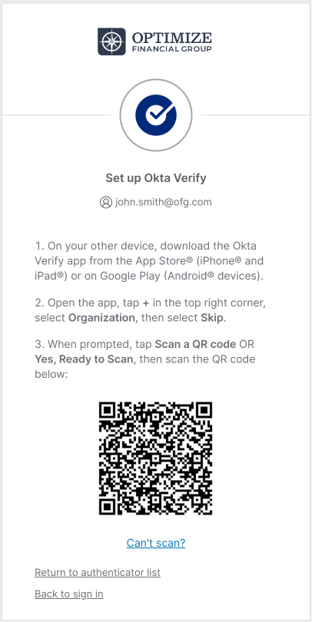
- A QR code appears on your computer screen — leave this open
- Follow the steps on screen to install the app and scan the QR code
Step 4 — Add your phone number (required)
After Okta Verify is set up, you'll be prompted to add your mobile number for SMS backup.
- On the Set up phone authentication screen, enter your mobile number
- Make sure Canada is selected as the country
- Click Receive a code via SMS (click only once — see troubleshooting if SMS doesn't arrive)
- Enter the 6-digit code you receive
- Click Verify
Why is this required? If you ever lose your device, the SMS backup is how you'll recover access to your account on a new device without needing IT to reset anything for you.
Step 5 — You're done
Your Optimize SSO account is now fully set up. You'll be brought to your Optimize Dashboard where you can see all the apps assigned to you.
What's next?
- All your applications will appear on your dashboard automatically
- Click any tile to access that application, no separate login required
Setting up Okta Verify on your phone
This is the authenticator app step from Step 3 above. Have the QR code visible on your computer screen before starting.
Install the app
- On your phone, open the App Store (iPhone) or Play Store (Android)
- Search for Okta Verify
- Confirm the publisher is Okta, Inc. (there are imposter apps so always check the publisher)
- Tap Get / Install
- Open the app once installed
Add your Optimize account
- In the Okta Verify app, tap Get Started
- Tap Next through the welcome screens
- Tap Add Account
- Select Organization
- If prompted to add an account from another device, tap Skip
- Tap Scan a QR code
- Tap Yes, Ready to Scan
- When asked for camera access, tap Allow
- Point your phone's camera at the QR code on your computer screen — keep it in focus
- The app should detect the code automatically and add your Optimize account
Enable Face ID / fingerprint and notifications
When prompted:
- Allow push notifications — makes signing in much faster going forward
- Enable Face ID / fingerprint / PIN — adds extra protection in case someone gets hold of your phone
You're done with Okta Verify setup. Your account should now be showing in the Okta Verify app, with a rotating 6-digit code.
Adding your phone number as a backup
This was covered in Step 4 of first-time setup, but if you skipped it or need to add/change your number later:
- Sign in to login.ofg.com
- Click your name in the top right → Settings
- Scroll to Security Methods
- Click Set up next to Phone
- Enter your mobile number → click Receive a code via SMS
- Enter the code → click Verify
Your phone number is now on file as a recovery method.
Logging in with SSO
Once you've set up Okta Verify, you'll use SSO to log in to all your Optimize systems.
Day-to-day login
- Go to your app's login page (HubSpot, Gmail, Portal, Academy, etc.) OR go directly to login.ofg.com
- Enter your Optimize email address as the username
- Enter your password
- Click Sign In
Verify with Okta Verify
You'll be asked to verify your identity. There are three ways depending on what's available:
Option A — Push notification (fastest)
- Your phone gets a notification: "Did you just try to sign in?"
- Tap Yes, it's me
- You're signed in
Option B — 6-digit code from the app
- Open the Okta Verify app on your phone
- Tap your Optimize account to reveal the 6-digit code
- Type the code into the sign-in screen
- Click Verify
The code refreshes every 30 seconds — if it expires, wait a moment for a new one to generate.
Option C — 6-digit SMS code sent to your phone number
- Your phone receives and SMS code
- Type the code into the sign-in screen
Got a new phone? Re-enrolling Okta Verify
If you've replaced your phone (lost, broken, upgraded), you'll need to re-set-up Okta Verify on the new device. Here's the correct process:
What you'll need
- Your new phone (with Okta Verify installed — see setup steps)
- A computer
- Your phone number that's on file (the SMS will go there, so it needs to still be your number)
Steps
- Install Okta Verify on your new phone from the App Store (iPhone) or Play Store (Android). Don't open it yet.
- From a computer, go to login.ofg.com
- Enter your Optimize email and password
- When asked to verify with Okta Verify, click the link "Verify with something else" at the bottom of the screen
- Choose Phone (SMS)
- Click Receive a code via SMS
- Enter the 6-digit code you receive → you're now signed in
- From your account dashboard, click your name (top right) → Settings
- Scroll to Security Methods
- Find the Okta Verify entry → click Remove to delete the old enrollment
- Click Set up next to Okta Verify
- A new QR code appears
- Open the Okta Verify app on your new phone → tap Add Account → Organization → Scan a QR code → scan the code on your computer
- Follow the prompts to enable Face ID and notifications
Your new phone is now enrolled. You're done.
If you can't access SMS either
If you lost both your phone AND your phone number (e.g., changed both), you won't be able to self-recover. Call Support: +1 (825) 450-4250 and the team will reset your account.
Adding Okta Verify to a second device
Want a backup? You can set up Okta Verify on both your phone AND a tablet (or two phones). Both will receive push notifications when you sign in.
- Sign in to login.ofg.com
- Click your name (top right) → Settings
- Scroll to Security Methods
- Find the Okta Verify entry → click Set up another
- A QR code appears
- Install Okta Verify on the second device → scan the code
Now both devices work. You can approve sign-ins from either one.
Troubleshooting common issues
"You have reached the limit of SMS requests"
This usually happens when the "Receive a code via SMS" button gets clicked multiple times before the first message arrives. SMS can take up to 60 seconds — clicking again resets the timer and counts against your limit.
Fix:
- Wait 10 minutes for the limit to reset
- Try again — click the button ONCE and wait at least 60 seconds before retrying
- If you keep hitting the limit, Call Support: +1 (825) 450-4250 to have your authenticators reset.
Push notification isn't arriving on my phone
- Make sure notifications are enabled for Okta Verify (Settings → Notifications → Okta Verify)
- Make sure your phone has internet connection
- Alternative: open Okta Verify and use the 6-digit code instead of waiting for the push notification
Forgot my password
- On the sign-in screen, click Forgot Password?
- Click Send me an email
- Check your Optimize inbox for the reset link
- Follow the link and set a new password
Need to update my phone number
- Sign in to login.ofg.com
- Click your name → Settings
- Security Methods → Phone → Remove the old one
- Set up a new Phone authenticator with your new number